
GPS Time Clock
GPS time clock for employee check-in and check-out
With Point PDKS you install no card reader, fingerprint or face recognition device for check-ins. When employees arrive at work they check in with one tap in the app on their own phone; the system compares their GPS location at that moment with the office locations and radius you define for the department. Inside the area the check-in is recorded, outside it is rejected.
Below you will find how location verification is set up, what is done about fake location attempts and when the location is read.
Office locations and radius: you draw the area
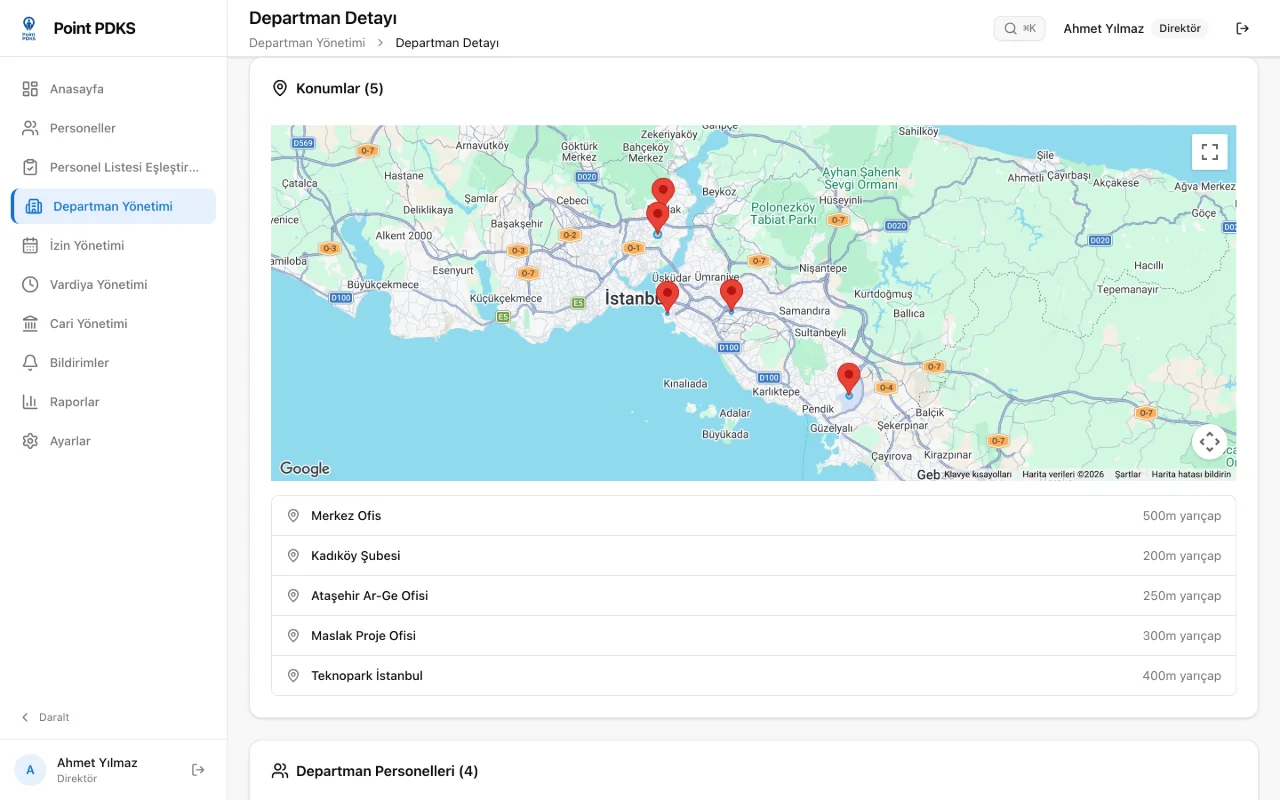
You define one or more office locations for each department: pick the spot on the map and enter the accepted radius in meters. A business with several branches simply adds each branch as its own location, and every location has its own radius.
You pick the radius to match your workplace: a narrow one for a small single-floor office, a wider area for a large factory site or a construction site. Locations are set on the department, so when an employee moves to another department the locations they are verified against change with it.
Check-in from the phone, in one tap
Employees download the app on iOS or Android and sign up with your company code. The account is paired with the employee's phone; the same account cannot check in from another phone. That ends the habit of clocking in for someone else. When an employee changes phones, a manager resets the pairing in the panel.
On arrival the employee taps check-in, and once the location is verified the check-in time is recorded. Check-out works the same way at the end of the day; an employee who forgets to check out gets an automatic check-out at the end of the shift.
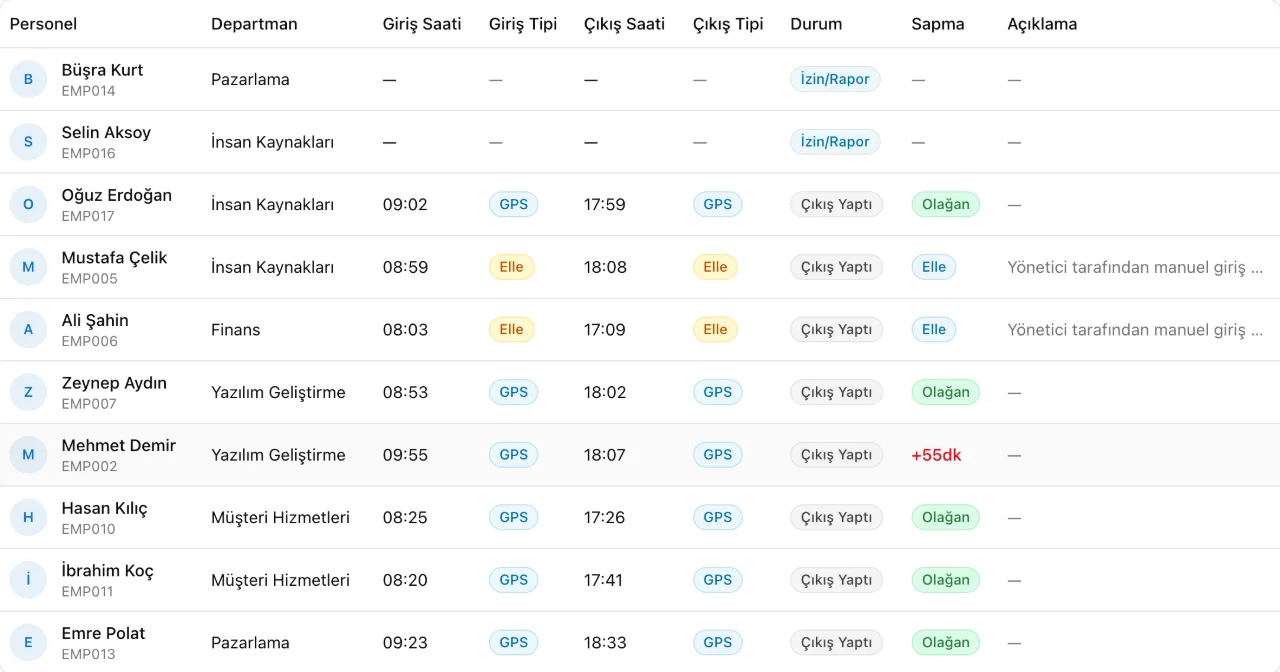
The daily table on the panel's home page shows who checked in at what time, whether the check-in was by GPS or written manually and how far it was from the shift.
Fake location attempts on record
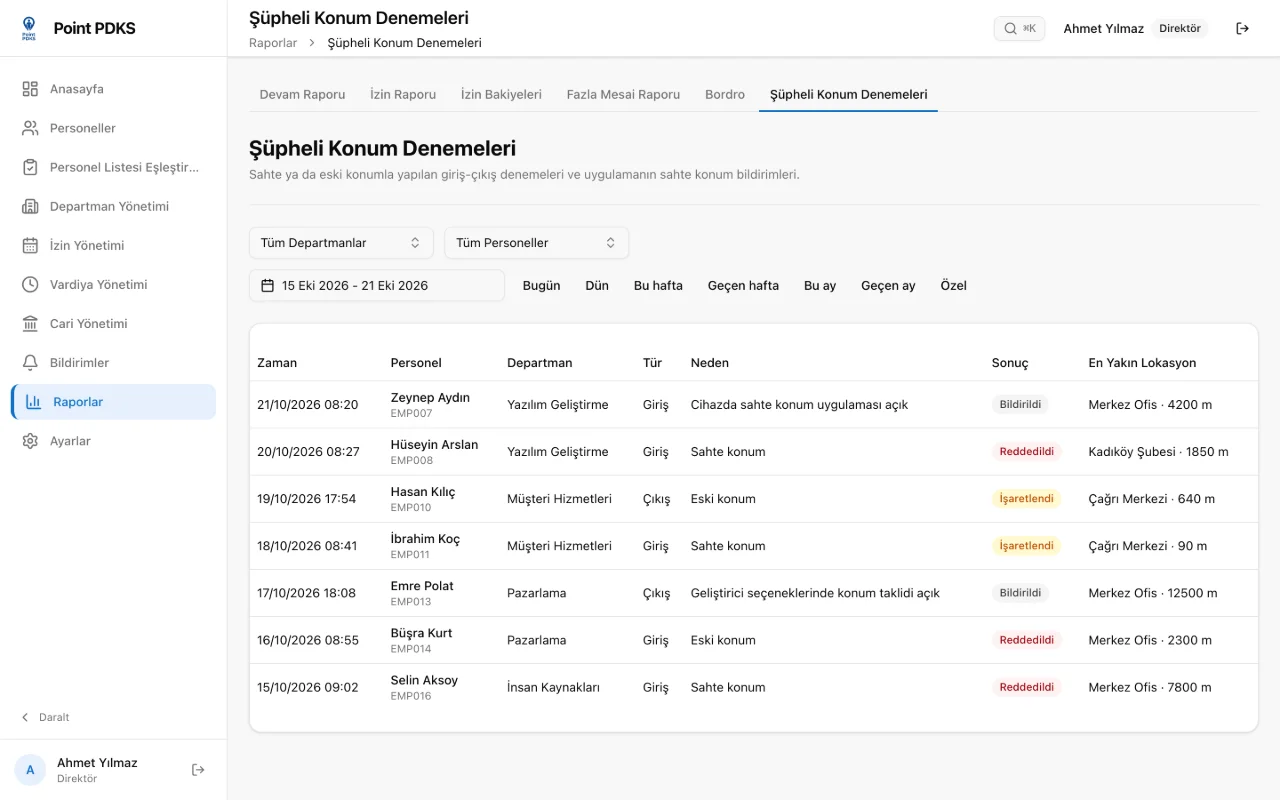
Apps that change the phone's location are the best-known weak spot of GPS check-ins. Point PDKS discourages fake location apps and records the attempts.
Recorded attempts appear in the Suspicious Location Attempts list under Reports with the time, employee, type (check-in or check-out), reason (fake location or stale location), outcome and the distance to the nearest office location. The list filters by department, employee and date range.
Manual records when no location can be read
For an employee whose phone broke or whose location could not be read, a manager can write the check-in or check-out in the panel. Manual records are labeled Manual in the reports and go into the audit log with who changed what and when. Managers see and correct only their own departments' records.
Location is read only at check-in and check-out
Point PDKS does not follow where employees are during the day. The location is read only at the moment the check-in or check-out button is tapped, for verification; there is no constant location tracking.
The system processes no biometric data: no fingerprint, no face recognition, no card reader. The pairing between the phone and the account shows that the account is with the right person.
Setup: no hardware, start the same day
GPS check-in needs no device mounted at the workplace and no cabling. We open your account the same day and define your departments, working hours and office locations together with you. Once your employees download the app and sign up with your company code, the system is running.
When you open a new branch or your office moves, you update the department's location in the panel; nothing needs to change on the employees' phones.
From check-ins to the timesheet
Every verified check-in and check-out goes into the timesheet at once: late arrivals, early leaves, worked time and overtime are calculated from the employee's shift. At month end you download the attendance, leave and overtime reports as Excel.
How does the timesheet work?Frequently asked questions
Questions about GPS check-in
How does a GPS time clock work?
When an employee checks in with the app on their phone, the system compares the GPS location with the office locations and radius you define for their department. Inside the area the check-in is recorded, outside it is rejected.
Is the employee's location tracked all day?
No. The location is read only at check-in and check-out, for verification; there is no constant location tracking.
Can someone check in with a fake location app?
Point PDKS discourages fake location apps and records the attempts. Recorded attempts appear in the Suspicious Location Attempts list under Reports.
We have several branches; can each branch have its own location?
It can. You add several office locations to each department and set the radius in meters for each location.
How is a check-in recorded when no location can be read?
A manager can write the check-in or check-out in the panel. Manual records carry their own label in the reports and go into the audit log.
What happens when an employee changes phones?
Each account is paired with one phone. When the phone changes, a manager resets the pairing in the panel and the employee carries on from the new phone.