
Timesheets
Timesheet software that builds the monthly timesheet from check-ins
In Point PDKS nobody fills in a timesheet by hand. When an employee checks in or out with GPS verification in the mobile app, the record is created on its own; worked time, late arrivals, early leaves, overtime and leave days are calculated from your shift definitions.
What is left for you at month end is to review the finished timesheet and download it as Excel. Below you will find how the timesheet is built, which reports it gives you and how manual corrections are recorded.
How is the timesheet built?
Every check-in and check-out goes into the employee's record for that day. The system compares it with the employee's shift: a check-in after the shift starts counts as a late arrival and a check-out before it ends as an early leave, both to the minute. Work beyond the shift's length is set apart as overtime.
Paid and unpaid break definitions are reflected in net worked time. You set the late-arrival and early-leave tolerance per shift, and the calculations follow it. Shifts that run past midnight are supported, and an employee who forgets to check out gets an automatic check-out at the end of the shift, so no day is left open.
- Late arrivals and early leaves to the minute
- Net worked time with breaks deducted
- Overtime from the shift definition
- An Absent record at day end for employees who did not come in
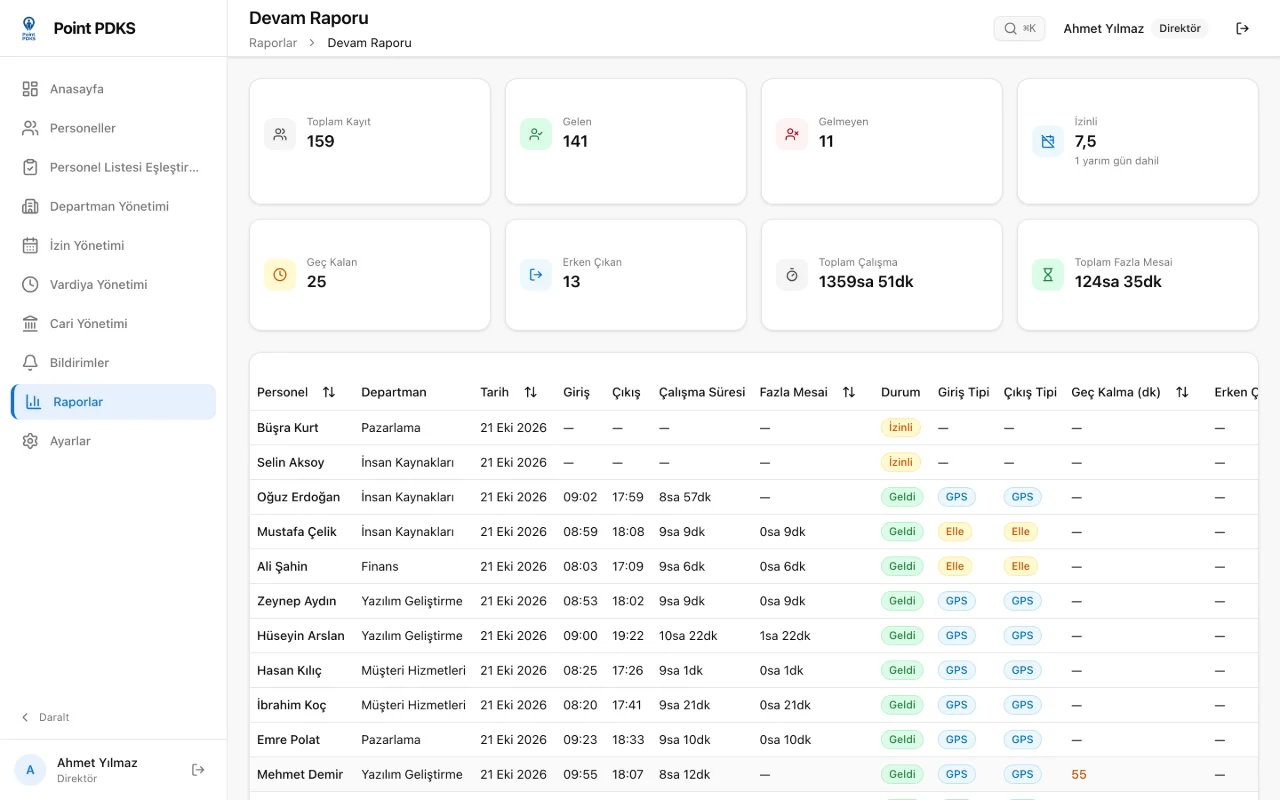
Leave and public holidays flow into the timesheet
Employees request leave in the mobile app; you approve it, or reject it with a reason, in the panel. Approved leave shows on the timesheet as leave on those days; a half-day leave counts as half a day and the employee can still check in for the other half.
You define leave types such as annual, excused and sick leave with quotas and a paid or unpaid flag. Public holidays come predefined, and you can add holidays of your own. An employee who does not check in on a working day is recorded as Absent at the end of the day, so no day is left blank at month end.
Overtime follows your shift definition
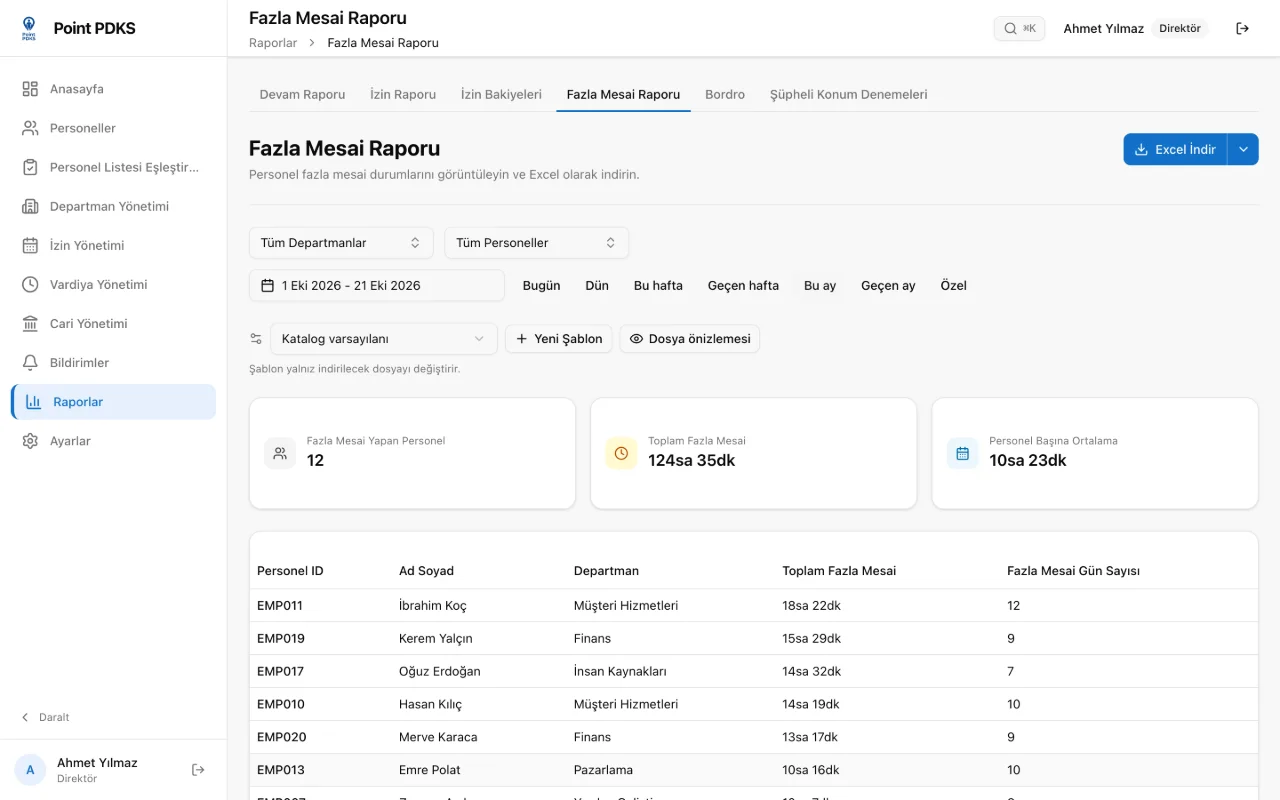
The Overtime Report lists each employee's total overtime and the number of days with overtime for the date range you pick. Its summary cards show how many employees worked overtime, the total time and the average per employee.
The calculation rests on your shift definitions: when a shift's start, end and breaks are defined correctly, overtime comes out accordingly. With the department and employee filters you can review a single team's month on its own.
The shift roster is the timesheet's foundation
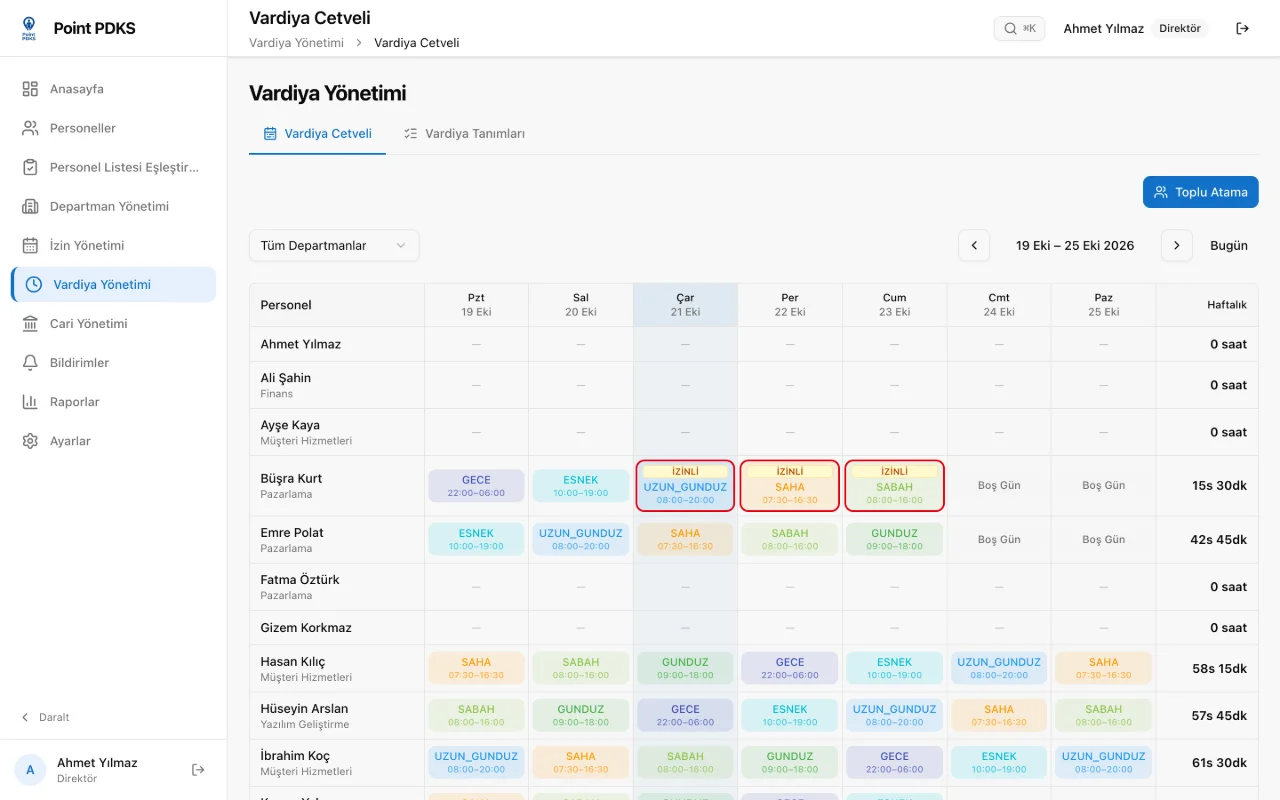
You define shifts once and assign them to employees on a color-coded roster. Night shift, break and tolerance settings live on the shift; every day the timesheet is calculated from the shift the employee has that day.
The per-person schedule view shows an employee's days and leave together. When an employee's shift changes, their timesheet is calculated from the new shift.
Manual corrections are possible, and every one leaves a trace
A manager can fix a forgotten check-in or a wrong check-out time in the panel. A manually written record is labeled Manual instead of GPS in the reports, so you can tell at a glance which times were verified by location and which were entered by hand.
Every manual correction goes into the audit log with who changed what and when, along with the value before and after. Managers see only their own departments; the director sees the whole company.
Excel at month end, in one click
You filter the attendance, leave and overtime reports by date range, department and employee and download them as Excel (XLSX). With report templates you choose the columns of the downloaded file to match your accounting layout, and you can look at a file preview before downloading.
The Excel output is a direct input to your payroll process: your accountant gets a file in the same layout with the same columns every month. Because the timesheet comes from check-in records, nobody has to add up hours at month end.
Where the timesheet comes from: GPS-verified check-ins
A timesheet is only as accurate as its check-in records. In Point PDKS employees check in and out on their own phones, and the system verifies the location against the office locations and radius you define for the department. No card reader, fingerprint or face recognition device is needed.
How does GPS check-in work?Frequently asked questions
Questions about timesheet software
What is timesheet software?
Timesheet software keeps a day-by-day record of how long each employee worked, whether they were late, on leave or worked overtime. In Point PDKS this record is built from check-ins on its own; you do not fill in a spreadsheet.
Can I export the timesheet to Excel?
You can filter the attendance, leave and overtime reports and download them as XLSX. With a report template you choose the columns in the file yourself.
What happens if an employee forgets to check out?
An automatic check-out is written at the end of the shift, so the day is not left open. If needed, a manager corrects the time in the panel; the correction goes into the audit log.
How is the timesheet calculated for night shifts?
Shifts that run past midnight are supported. Once you set the start, end and breaks in the shift definition, worked time and overtime are calculated from it.
How does a half-day leave show on the timesheet?
An approved half-day leave counts as half a day on the timesheet; the employee can still check in for the other half.
Is extra hardware needed for timesheets?
No. Employees check in and out with the iOS or Android app on their own phones; no card reader, fingerprint or face recognition device is used.